Trading terminal
Send an order to one or several accounts, the lot sized on your risk, then hand stops, targets and guards over to Kara's risk engine.
5 min read · Version 1.2.51 · updated 29 September 2026
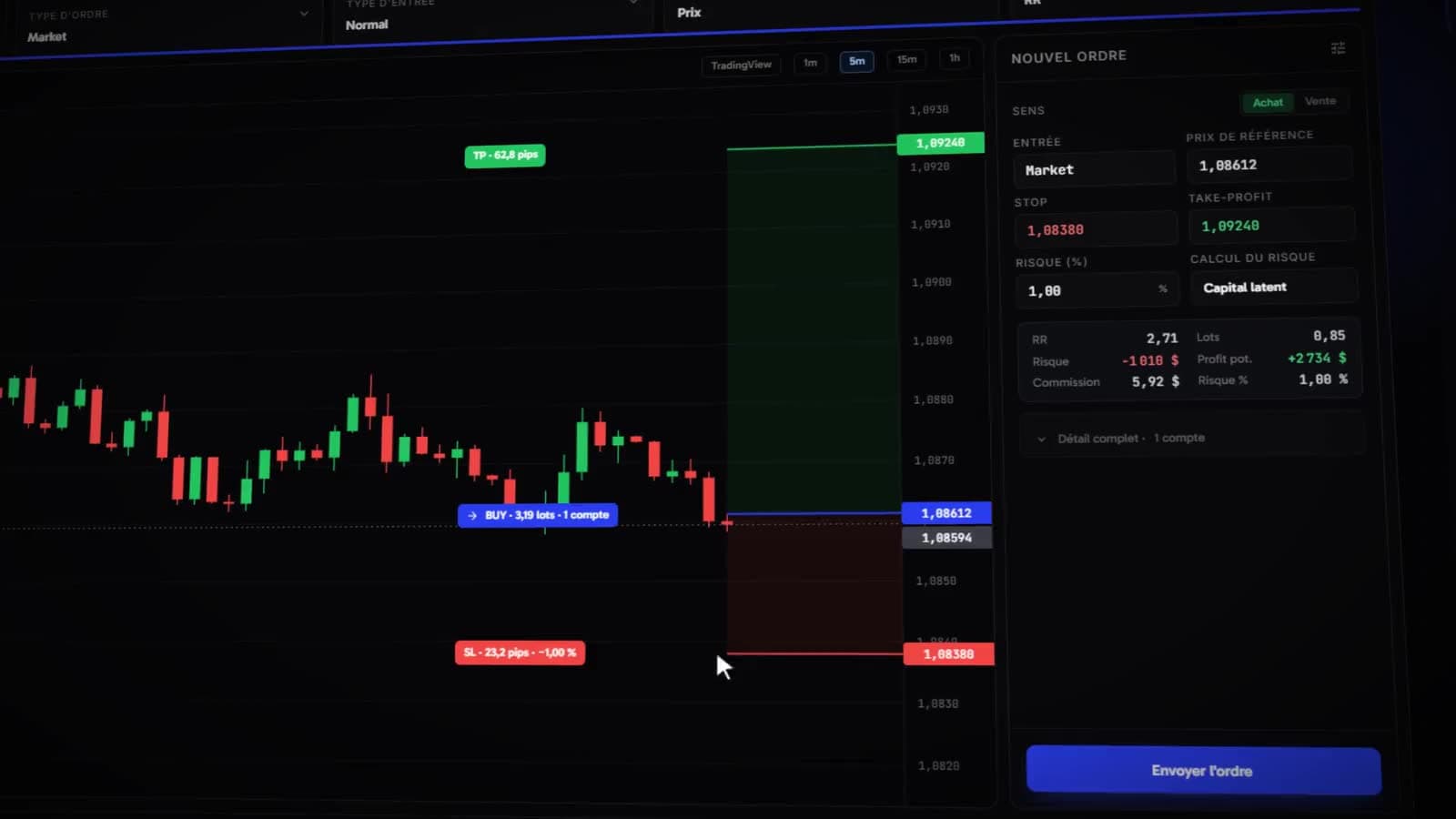
- Prepare and send an order to several accounts at once
- Read the risk indices before sending
- Set up the risk engine: entries, exits and discipline
- Follow what the engine did, and why
Before you start
- Plan: the terminal is included in the Copier and Complete plans, and in the free trial.
- Accounts: MetaTrader linked with the master password, cTrader or Rithmic. An account linked read-only (investor password) or with no terminal connected refuses orders, and the terminal tells you why.
Prepare an order
- 1
Terminal>Trading Terminal, thenNew order. - 2Choose the asset and the side:
BuyorSell. - 3Choose the entry type.
Marketgoes at the market price;Normalplaces an order at a price;Rangesplits the entry into several orders between two prices, from 2 to 100 orders. - 4Set the order type (
Market,LimitorStop-Limit), the stop and the take-profit. - 5Choose the accounts.
One account, several, or
All my active accounts. - 6Set the risk.
In percent or in currency. Choose whether it is computed on the
Balanceor on theLatent Capital(open positions included), and whether commissions are deducted. - 7Read the summary, then
Send order.For each account: lots, risk, expected reward and commissions.
Three special cases
- Broker minimum lot
- If the computed lot is smaller than the broker's minimum, the terminal warns you account by account: the order can go, but at the minimum lot, so with a higher real risk than requested. You confirm or cancel.
- Reference price
- If the asset has no quote in Kara, the terminal asks for a reference price. It is only used to size the position; the order still goes at market.
- Trigger level
- For a stop order, the price that fires the market order. It is also the price used to compute the lot.
Risk indices
Before sending, the terminal measures what the order adds to what you already hold:
- Correlation index
- Share of open lots carried by a symbol that shares a currency with the order being prepared.
- Hedging index
- Share of open lots that cancel each other out: opposite positions on the same symbol.
- All-positions risk
- Total loss if every stop were hit, open positions and the order being prepared included. Positions without a stop, or in a currency other than the account's, are not counted; the screen says how many.
Follow your orders
Each send gets a status: Queued, Sent, Filled, Rejected (with the reason given by the broker) or No ack. The page is then split into three tabs: Positions, History and Pending orders. Close all closes every open position of the accounts concerned, after confirmation.
In Pending orders, orders fall into two groups: those placed at the broker, which you can edit or cancel, and those held by the risk engine, waiting for their conditions to go.
The risk engine
Advanced risk management sets what Kara's server does with your positions, without you having to stay in front of the screen. It is switched on and off with a toggle, and its rules apply to all your accounts: it is set up once, not account by account. Its settings are split into five tabs: Entry, Position, Exits, Discipline and Journal.
At the heart of the engine are virtual stops and targets: the level is kept by Kara's server, not at the broker. The engine watches the price and closes the position when it is hit, even with your computer off.
Entry
- Conditional entry
- The order is handed to the engine, which only sends it once its conditions are met, before an expiry date. If the price feed is down, the order waits for it to come back.
- Spread guard
- The entry waits for the bid-ask spread to fall back under the set threshold.
- Orderflow condition
- The entry waits for a flow condition. It is only offered on assets for which Kara receives order-flow data.
Position
- Trailing SL
- A trailing stop, with four logics:
Fixed distance,Steps (R),TimeorVolatility. - Break-even
- The stop moved to the entry price once a given gain is reached.
- Partial TP
- Part of the position closed at one or several levels.
- Trailing TP
- A target that extends:
On approachof the level, withTime, or withVolatility.
Exits
- Time-stop
- The position closed after a given duration.
- Scheduled close
- Closing at a set time, every day or on Fridays only.
Discipline
- Max loss per day
- In currency or in percent.
- Max trades per day
- Beyond it, no more entries.
- Anti-tilt
- A forced pause after a losing streak.
- News guard
- Blocks entries, or moves positions to break-even, in a window before and after each high-impact release.
- On breach
Lockblocks new entries;Lock + close allalso closes open positions.
A locked account shows the reason and the end time. While it is locked, the terminal refuses orders (daily guard active). To unlock it earlier, turn the guard off.
Engine journal
Every action of the engine is written there: break-even set, trailing stop moved, partial exit, conditional entry triggered, expired or refused, guard triggered, close on virtual stop or target, scheduled close. The journal shows all your accounts, or only the ticket's accounts.
On each position, small tags sum up what the engine holds on it: virtual SL and TP armed, BE applied, TP1, TP2… for partial exits, EXT when the target was extended, CLOSE when a close is in progress.